
javascript querySelectorを使用して要素を取得する
- 作成日 2020.12.23
- 更新日 2022.07.28
- javascript
- javascript

javascriptで、セレクタ APIと呼ばれるAPIのメソッドであるquerySelectorを使用して、要素を取得するサンプルコードを掲載してます。ブラウザはchromeを使用しています。
目次
環境
- OS windows10 pro 64bit
- Apache 2.4.43
- ブラウザ chrome 103.0.5060.134
querySelector使い方
querySelectorを使用することで、class名や要素名を指定して、要素を取得することが可能です。
実際に、querySelectorを使用して要素を取得してみます。
<div id="hoge">
  <p>hoge</p>
</div>

<div class="foo">
  <p>foo</p>
</div>

<script>

'use strict';

const obj1 = document.querySelector('#hoge');
const obj2 = document.querySelector('.foo');
const obj3 = document.querySelector('div');

console.log(obj1);
console.log(obj2);
console.log(obj3);

</script>実行結果
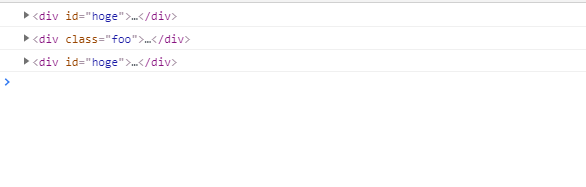
「const obj3 = document.querySelector(‘div’);」の実行結果の通り「querySelector」は初めに見つかった要素を取得します。
inputや複数IDを指定して、取得することも可能です。
document.querySelector("input[type='number']");

document.querySelector("#hoge1, #hoge2, .foo")
存在しないものを指定するとnullが返ります。
const obj4 = document.querySelector('b');

console.log(obj4);
// null
また、querySelectorAllを使用すると指定した全ての要素を取得することが可能です。
なお、基本的には、同じ要素を取得するメソッドである「getElementById」の方が処理は速いです。
サンプルコード
以下は、
「実行」ボタンをクリックして、指定した要素を取得した後に、表示する
サンプルコードとなります。
※cssには「tailwind」を使用して、アロー関数で関数は定義してます。
<!DOCTYPE html>
<html lang="ja">

<head>
  <meta charset="utf-8">
  <title>mebeeサンプル</title>
  <link href="https://unpkg.com/tailwindcss@^1.0/dist/tailwind.min.css" rel="stylesheet">
</head>

<script>

  const hoge = () => {

    // 要素を取得
    const tag = document.querySelector('.tag');

    // 変換
    const html = tag.innerHTML;

    // フロントに出力
    result.textContent = html;

  }

  window.onload = () => {
    // クリックイベントを登録
    btn.onclick = () => { hoge(); }; // document.getElementById('btn');を省略
  }

</script>

<body>
  <div class="container mx-auto my-56 w-56 px-4">

    <div class="tag flex justify-center">
      <p id="result" class="bg-pink-700 text-white py-4 px-8 rounded-full mb-3 mt-4">取得する要素</p>
    </div>

    <div class="flex justify-center">
      <button id="btn" type="button"
        class="mt-5 bg-transparent border border-yellow-500 hover:border-yellow-300 text-yellow-500 hover:text-yellow-300 font-bold py-2 px-4 rounded-full">
        実行
      </button>
    </div>
  </div>

</body>

</html>
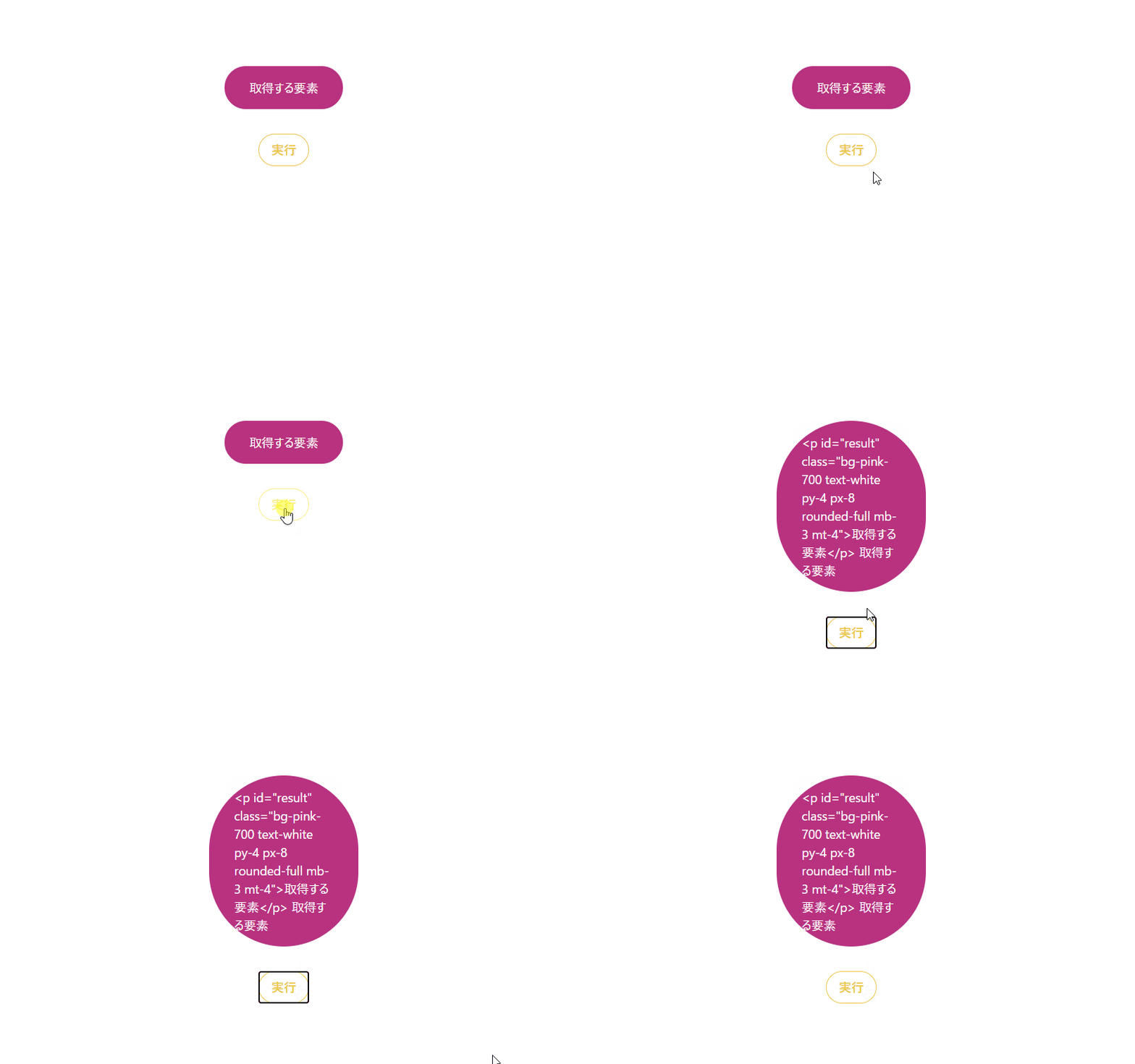
要素の内容が、出力されていることが確認できます。
その他 querySelector使用例
value取得
document.querySelector("input[type='text']").valuevalue設定
document.querySelector("input[type='text']").value = "foo"onclick
document.querySelector("#hoge").onclick = function() {}クラス追加
document.querySelector("#hoge").classList.add('classname');クラス削除
document.querySelector("#hoge").classList.remove('classname');クラス存在チェック
document.querySelector("#hoge").classList.remove('classname');-
前の記事

python numpyで等差数列の配列を作成する 2020.12.23
-
次の記事
Nuxt.js ライブラリ「vue-englishdatepicker」をインストールして日付ピッカーを実装する 2020.12.23